
Use PodNotes on your phone
Listen and capture timestamps on your phone. You open the player yourself, and besides the command palette, you can capture from the editor toolbar or a headset. To install PodNotes, follow Install PodNotes. The steps are the same on a phone.
Open the player
Section titled “Open the player”On a phone, the player stays closed when Obsidian starts.
- Pull down on a note to open the command palette.
- Run PodNotes: Show player.
You can also select Show PodNotes in the menu of the navigation bar at the bottom of the screen. The player opens in the right sidebar. To return to your note, select outside the sidebar.
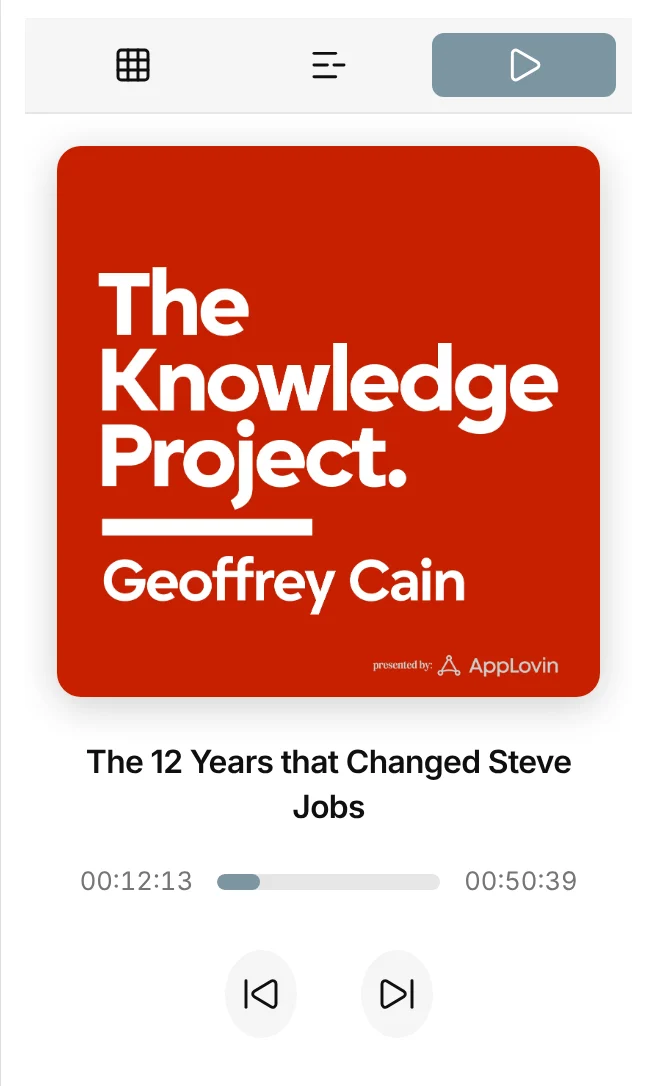
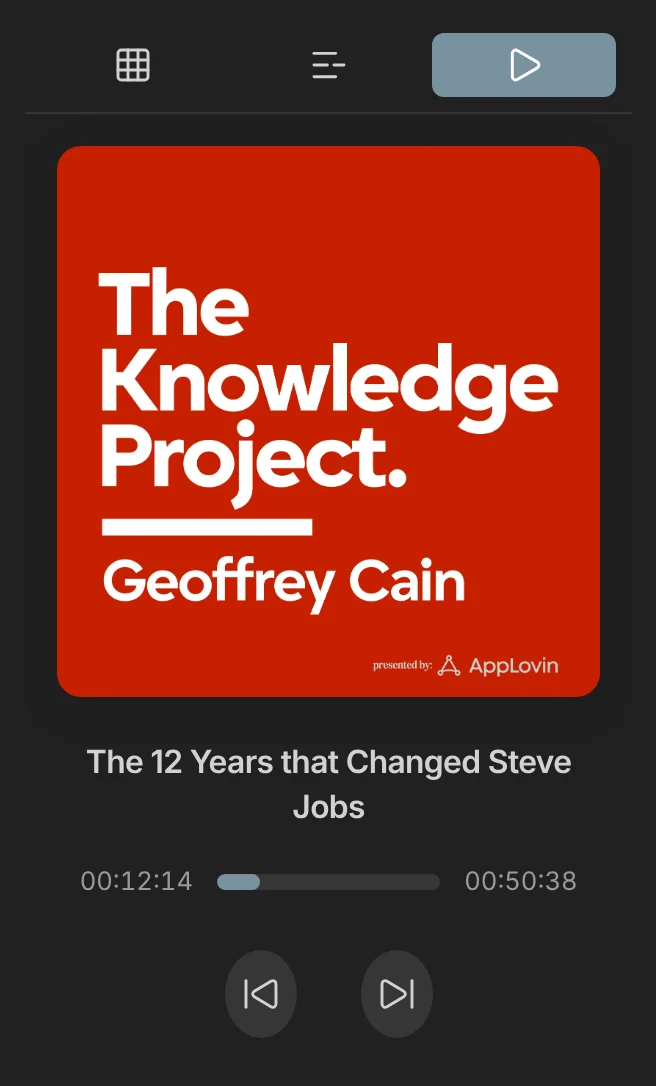
To add your first podcast, see Add and play podcasts. Most commands appear only after you load an episode. See Commands.
Add a capture button to the editor toolbar
Section titled “Add a capture button to the editor toolbar”Set up the button once
Section titled “Set up the button once”- Open a note in editing view. Obsidian lists the capture command only while a note is open in an editor.
- In Settings → Interface, select Configure mobile toolbar.
- Select Add a command… under Manage toolbar options.
- Find and select PodNotes: Capture Timestamp. Its button shows a clock.
To add a range button, play an episode in PodNotes first. You can pause it. Then repeat steps 1 to 4 with PodNotes: Capture Last 10 Seconds or PodNotes: Capture Last 20 Seconds. Obsidian lists them only while the range commands are available.
Capture from the toolbar
Section titled “Capture from the toolbar”- In PodNotes, play an episode.
- Select outside the sidebar to return to your note.
- In editing view, place the cursor where the timestamp goes.
- In the editor toolbar, select the clock button.
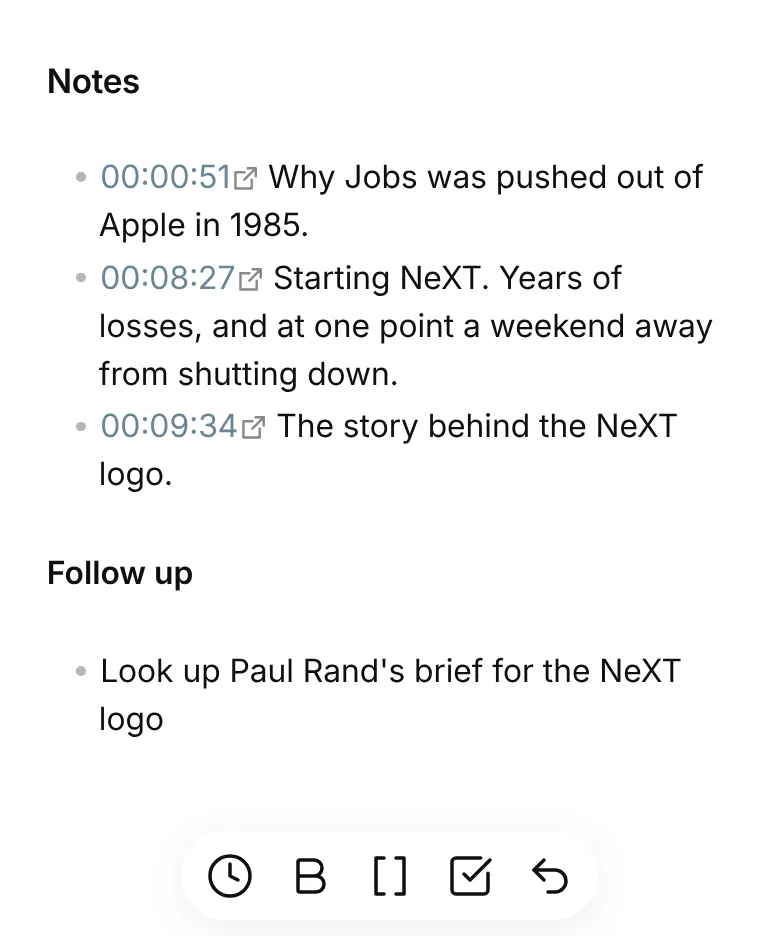
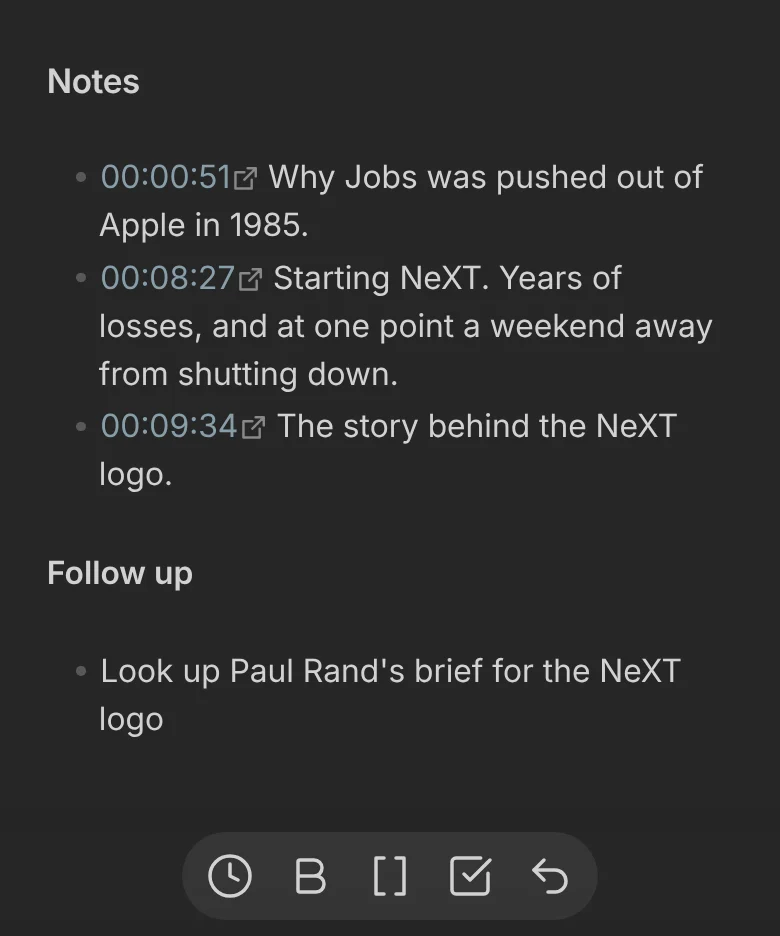
PodNotes inserts a timestamp link at the cursor, or shows a notice when no episode is loaded. If your timestamps come out as plain text, see Make timestamps clickable.
Capture with a headset
Section titled “Capture with a headset”While an episode plays, press the headset button that sends the previous-track action, often a triple press. This works on a computer too.
- If a note is open in an editor, the timestamp goes in at the cursor.
- If no note is open in an editor, the timestamp goes at the end of the episode’s note. PodNotes creates that note if needed, as long as Note creation file path and Note creation template are set.
Download an episode
Section titled “Download an episode”Download episodes while you are online, and wait for the notice that says each download succeeded. On a phone, the episode menu opens from the three-dot More options button. See Download an episode.
Play your own audio and video
Section titled “Play your own audio and video”Long-press a media file in the file explorer, where a computer uses a right-click. See Play your own audio and video.
Limits on phones
Section titled “Limits on phones”- PodNotes does not merge changes from two devices, so use one device at a time. Before you switch, follow Use PodNotes on two devices.
- A file that plays on a computer can fail on a phone that lacks its codec.
- Which headset press sends previous track depends on the headset and the phone, and some headsets send none.
- API keys stay on each device, so add them on your phone too. A protected private feed works on one device at a time. See API keys and private feeds on each device.
- A download made on another device plays only after its media file syncs to this one. See Downloads on another device.